


AI Photo Studio: Editor Pro
4.6721.00 Reviews
App Specs
- Version
- 1.3.3
- Updated On
- License
- Free
- Downloads
- 10,000,000+
- Developer
- ZANKHANA PTE LTD
- Categories
- Photography
- Platform
- Android
Screenshots

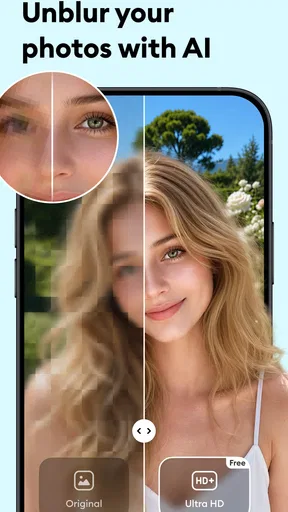
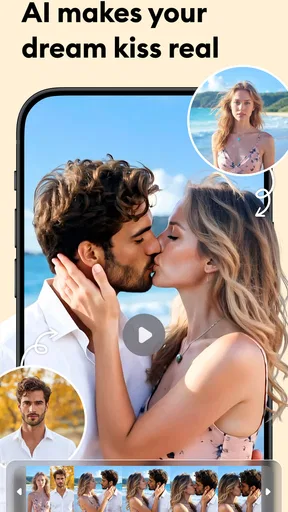
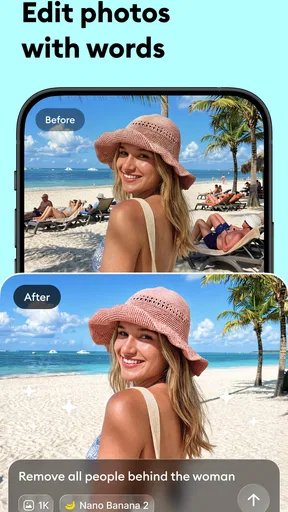
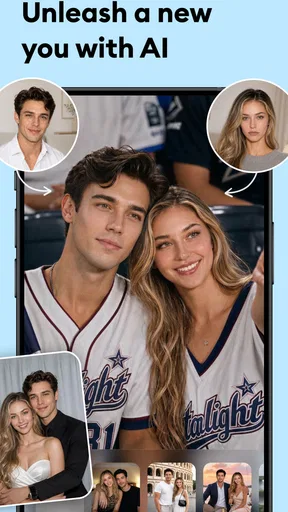
 Analysis by AppCompare
When I want to improve a photo quickly, I’d rather make a few considered changes than wrestle with a complicated desktop editor. AI Photo Studio: Editor Pro is built around that sort of quick, phone-first editing: it brings enhancement, creative effects, background changes and object removal into one photography app. I find that useful when a picture is nearly right but needs a little help before I share it.
A quick edit is not the same as a private edit
AI editing can make a photo feel more personal, but it can also involve choices worth thinking about. A portrait, family picture or image of a document may reveal more than the user intends. I would treat any AI editor with care around sensitive images, and decide whether a photo is appropriate to process before importing it. That is a practical habit, not a claim about this app’s data handling.
The app is free to download, with optional in-app purchases priced from $0.99 to $29.99 per item. That makes it easy to try the basic experience, but I’d check what a particular tool or purchase offers before committing money. If I only need one correction, I would first see whether the free options cover it rather than assuming every feature is included.
What the available facts can—and cannot—tell you
ZANKHANA PTE LTD is the developer, and the app has a 4.7 average from around 86,000 ratings, with over 5 million installs. Those figures suggest that many people have tried it, but they don’t tell me whether a particular edit will look natural or whether the app suits my own privacy expectations. I treat popularity as context, not as a substitute for checking the choices shown on my device.
I also wouldn’t infer permissions, cloud processing, account controls or data-retention practices from an AI feature list. Those details matter with personal photographs, so I’d read the permission prompts and any privacy information presented in the app or its store page before choosing images. If I can’t understand a request or feel comfortable with it, I’d decline and use a simpler editor for that job.
The age rating is Everyone, which describes the app’s content classification; it is not a guarantee that every editing choice is suitable for every situation. For instance, changing a background in a family photo may be harmless fun, while altering an image used to document an event could mislead someone. I keep the intended use in mind and avoid presenting a heavily changed picture as an untouched record.
Keep control of the edit, not just the result
My safest workflow is to keep the original image intact and treat the edited copy as a separate version. Before using an AI enhancement, I look at the unedited photo and decide what needs fixing: a dark face, a distracting object or an awkward background. That keeps the tool from steering me toward changes I never wanted, and makes it easier to judge whether the result still feels like my picture.
Worth Reading Before You Choose

Flipboard Shows What News Apps Must Do Beyond the Feed

Switching to Android Auto Means Rethinking Your Driving Routine

Google Calendar Makes a Crowded Week Easier to Manage

Ludo King Makes the Most of the Minutes Between Plans

Baby Panda World Brings Quick Play to Modern Phones, but Its Game Library Feels Busy

ESPN’s Live Game View Makes Following Close Games Easier
For a photo with several possible fixes, I’d change one thing at a time and compare the result with the original. This is especially useful for portraits: a small adjustment can help, but a series of automatic changes may alter skin texture or facial detail more than I intended. If the app offers a visible before-and-after view, I’d use it; if not, I’d still pause between edits and check the image at normal viewing size.
I would also be deliberate with object removal. It can tidy a casual snapshot, but removing something important from a documentary or work image can change its meaning. For a social post, cleaning up a stray distraction may be fine; for evidence, news or a record of a real event, an unaltered photo or a clearly labelled edit is the more responsible choice.
Who is likely to enjoy this kind of editor?
I can see the appeal for someone who takes plenty of phone photos and wants a short path from camera roll to shareable image. A casual user can try an enhancement or filter without first learning a full desktop workflow, while a creator might appreciate having several kinds of AI-assisted adjustments in one place. The app is particularly suited to quick personal edits where convenience matters more than exact control over every pixel.
Imagine taking a group photo at a café after work. The faces look a little dim, and a bright sign behind the group pulls the eye away. I’d start by correcting the overall image, then see whether removing that distraction improves the composition. I’d keep the original, inspect the edges around the people, and stop if the edit creates odd outlines. That small check often matters more than adding another filter.
It may be less suitable if you need precise layer-based compositing, detailed colour grading, or consistent professional retouching across a large client workflow. A dedicated desktop editor usually gives more granular control, and a conventional mobile editor may be preferable when you want manual adjustments without AI-driven changes. If your priority is simply cropping, straightening or adjusting exposure, a basic photo editor already on your phone may be quicker.
Getting Started with AI Photo Studio: Editor Pro
Once you download and open the app, you're greeted with a clean and intuitive interface. No clutter, just the tools you need to start editing your photos like a pro. The learning curve? Practically nonexistent. Even if you’re new to photo editing, you’ll feel like a seasoned editor in no time.
The app offers a quick tutorial for beginners, which I found super handy. It walks you through the basic features without overwhelming you with too much info. It’s like having a friendly guide showing you around. Nice touch, right?
Features That Make It Stand Out
Now, let’s talk features. The app is packed with options that make transforming your photos a breeze. Here are some highlights:
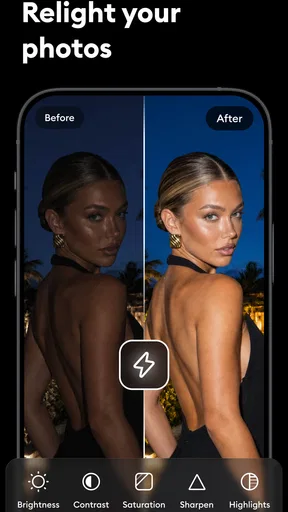
- AI-Powered Enhancements: This is where the magic happens. The AI technology analyzes your photo and suggests enhancements to improve lighting, contrast, and overall quality. It’s like having a professional editor look over your shoulder.
- Filters Galore: You get a wide array of filters to play with. Whether you’re into vintage vibes or modern aesthetics, there’s something here for everyone.
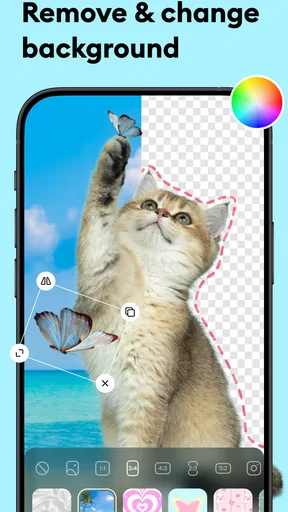
- Background Replacement: This feature is a game-changer. You can swap out backgrounds effortlessly, and the results look natural. Perfect for those vacation photos where the scenery wasn't quite up to snuff.
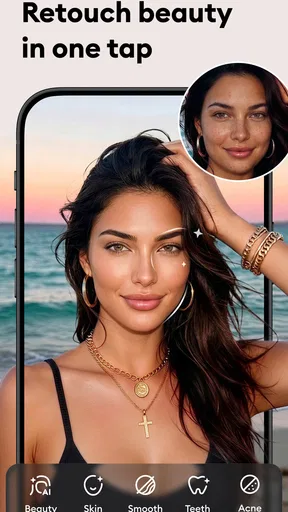
- Portrait Retouching: Say goodbye to blemishes and hello to smooth skin. The retouching tools are subtle yet effective—no more overdone edits that make you look like a wax figure.
When I use an editor with several creative tools, I find it helps to choose the goal before choosing the effect. For a dim indoor shot, I’d try enhancement first and only then decide whether a filter adds anything. For a portrait against a busy scene, I’d consider whether a background change solves the problem better than a strong colour treatment. Separating those decisions makes it easier to avoid an image that looks heavily processed.
Background edits deserve a closer look around hair, glasses and shoulders, where an automatic selection can be less convincing. I’d zoom in before saving or sharing, especially if the replacement is visually very different from the original. A result that looks polished as a small thumbnail may show rough edges when viewed larger. If the boundary distracts me, I’d choose a less dramatic background or leave the original intact.
Using the App: My Personal Experience
I decided to test the app on a few of my recent holiday snaps. The AI enhancements were impressive, making my photos pop without looking over-processed. I particularly loved the background replacement tool. I swapped out a dull sky for a vibrant sunset, and it looked stunning.
Another nifty feature is the batch editing option. If you’ve got a ton of photos to edit, this will save you a lot of time. I edited a whole album in minutes. It’s like having an efficiency boost button.
For a batch workflow, I’d still review a handful of images before applying the same treatment widely. Photos in one album can have different lighting, skin tones and white balance, so a look that works on one frame may flatten another. I’d use batch editing for a consistent, modest adjustment, then handle unusual shots individually. That gives back time without turning convenience into a row of identical-looking images.
Another useful habit is to make a small test edit before spending time on a full set. If the AI treatment pushes colours too far or the background cutout struggles with fine details, I can switch approach early. This matters when preparing photos for a family album or a group post: a natural-looking set often feels more cohesive than a collection of individually dramatic edits.
What about the portrait retouching, you ask? Well, it works wonders. I tried it on a selfie, and it subtly smoothed out my skin while keeping my natural features intact. No alien-like results here!
Practical limits and alternatives
The convenience of an all-in-one editor is also its main trade-off. A focused app for manual colour work may give me finer control, while a dedicated background-removal tool may be a better choice when a clean cutout is the entire task. I’d choose this app when I want to try several kinds of quick enhancement in one session; I wouldn’t assume that breadth makes it the strongest option for every specialised job.
AI suggestions are still suggestions, not reliable corrections for every photograph. A very blurry image, strong motion or difficult lighting can leave little detail to improve, and an automatic enhancement cannot recover information that was never captured clearly. I’d avoid repeatedly applying effects in the hope of rescuing a poor source image; a lighter edit, or retaking the photo when possible, is often the better call.
It is also worth considering the destination. A bright, stylised edit may work well in a social feed but look out of place in a printed family album or a professional profile. I’d preview the image at the size and setting where it will actually appear, rather than judging it only inside an editing screen. The right finish depends on the photo’s purpose, not on how many tools are available.
The app is free, but purchases can range from $0.99 to $29.99 per item. I’d check the price shown for the specific option I’m considering and whether it is a one-off purchase before confirming. Since the app is on version 1.2.8 and requires OS 8.0 or later, I’d also make sure my device meets that requirement before planning to use it. The release date is Dec 12, 2024.
Ending Thoughts: Is It Worth It?
So, is the app worth the download? Absolutely. Whether you’re a casual photographer or someone who takes their edits seriously, this app is a fantastic tool to have. It’s easy to use, packed with features, and delivers professional-looking results without the fuss.
If you’re interested in giving your photos that extra flair, I recommend checking it out. It’s available on both Android and iOS, and you can download it right from our site. Happy editing, and may your photos always turn out picture-perfect!
My recommendation comes with a practical qualification: I’d try it for low-stakes photos first, learn which edits look convincing on my own images, and keep an untouched copy of anything I care about. That lets me judge the results before using the app for a larger batch or a more personal picture. If I need precision, clear privacy controls, or a strictly documentary image, I’d take time to review the choices available and consider a more suitable manual workflow.
Overall, this is best approached as a convenient creative helper rather than a replacement for careful editing or sound judgement. Its mix of quick AI adjustments, filters and background tools makes it appealing for everyday phone photography, while the limits of automated edits still matter. I’d recommend giving it a cautious try if that balance suits you; if your needs are highly specialised, a focused editor is likely to serve you better.
Pros
- Easy-to-use interface for beginners.
- Wide range of editing tools available.
- Supports high-resolution image output.
- Regular updates with new features.
- Integrates well with social media apps.
Cons
- Some features require in-app purchases.
- Occasional lag on older devices.
- Limited free version capabilities.
- Heavy on battery usage during editing.
- Ads can be intrusive in free version.
FAQs for AI Photo Studio: Editor Pro
What features does AI Photo Studio: Editor Pro offer?
AI Photo Studio: Editor Pro offers a range of features including advanced photo editing tools, AI-driven enhancements, and creative filters. Users can retouch portraits, remove backgrounds, and apply artistic effects with ease. The app also allows for easy sharing on social media platforms, making it a versatile tool for both casual and professional photographers.
Is AI Photo Studio: Editor Pro user-friendly for beginners?
Yes, AI Photo Studio: Editor Pro is designed to be user-friendly, with an intuitive interface that guides beginners through the editing process. The app includes tutorials and tips to help users maximize its features. While it offers advanced tools, the learning curve is gentle, making it accessible for users of all skill levels.
Does AI Photo Studio: Editor Pro require an internet connection?
AI Photo Studio: Editor Pro mostly operates offline, allowing users to edit photos without an internet connection. However, certain features like cloud storage and online sharing might require internet access. It’s advisable to have occasional connectivity to access updates and new features that enhance the app's functionality.
What are the in-app purchase options available in AI Photo Studio: Editor Pro?
AI Photo Studio: Editor Pro offers a free version with basic features, alongside a premium subscription that unlocks advanced tools and additional effects. The in-app purchases might include unique filters, templates, and unlimited cloud storage options. Users can choose a monthly or yearly subscription based on their needs and budget.
Is AI Photo Studio: Editor Pro secure for handling personal photos?
Yes, AI Photo Studio: Editor Pro prioritizes user privacy and security. The app uses encryption to protect photos and personal data. It complies with privacy regulations, ensuring that user information is not shared without consent. Users can confidently edit and store their photos, knowing their data is secure.


